

Ever felt like your iPhone’s playing hide and seek with you? You’re not alone! Many users discover that apps mysteriously vanish from sight, tucked away in the depths of folders or even hidden entirely. But fear not! Uncovering those elusive hidden apps is easier than finding a needle in a haystack—especially when you know the right tricks.
Understanding Hidden Apps on iPhone
Hidden apps on an iPhone can stem from various reasons, including unintentional organization or the use of specific settings. Users may hide apps to declutter their home screens, making navigation seem simpler. Apple incorporates certain features that may cause apps to disappear from view, such as restrictions or the App Library.
The App Library automatically categorizes apps and can separate unused apps from the home screen. Users might overlook these categories, complicating the app-finding process. Furthermore, restrictions enable users to control app visibility for privacy reasons, particularly in family settings. Accessing hidden apps often starts with checking both the App Library and any folders on the home screen.
Hidden apps also can result from the “Offload Unused Apps” feature. This setting can remove unused apps while retaining their data, making them invisible until actively re-downloaded. Checking for offloaded apps involves digging into the Settings app and managing storage options.
Moreover, searching can be a useful resource to pinpoint lost apps. Entering the app’s name in the search bar provides quick access, bypassing the need for manual scrolling. By swiping down on the home screen and typing the app’s name, search results will appear instantly.
Managing notifications can also help reveal hidden apps. Notifications sometimes serve as reminders of app presences, prompting users to check for forgotten applications. Understanding these different methods ensures users can find hidden apps efficiently, returning them to the forefront of their iPhone experience.
Methods to Reveal Hidden Apps
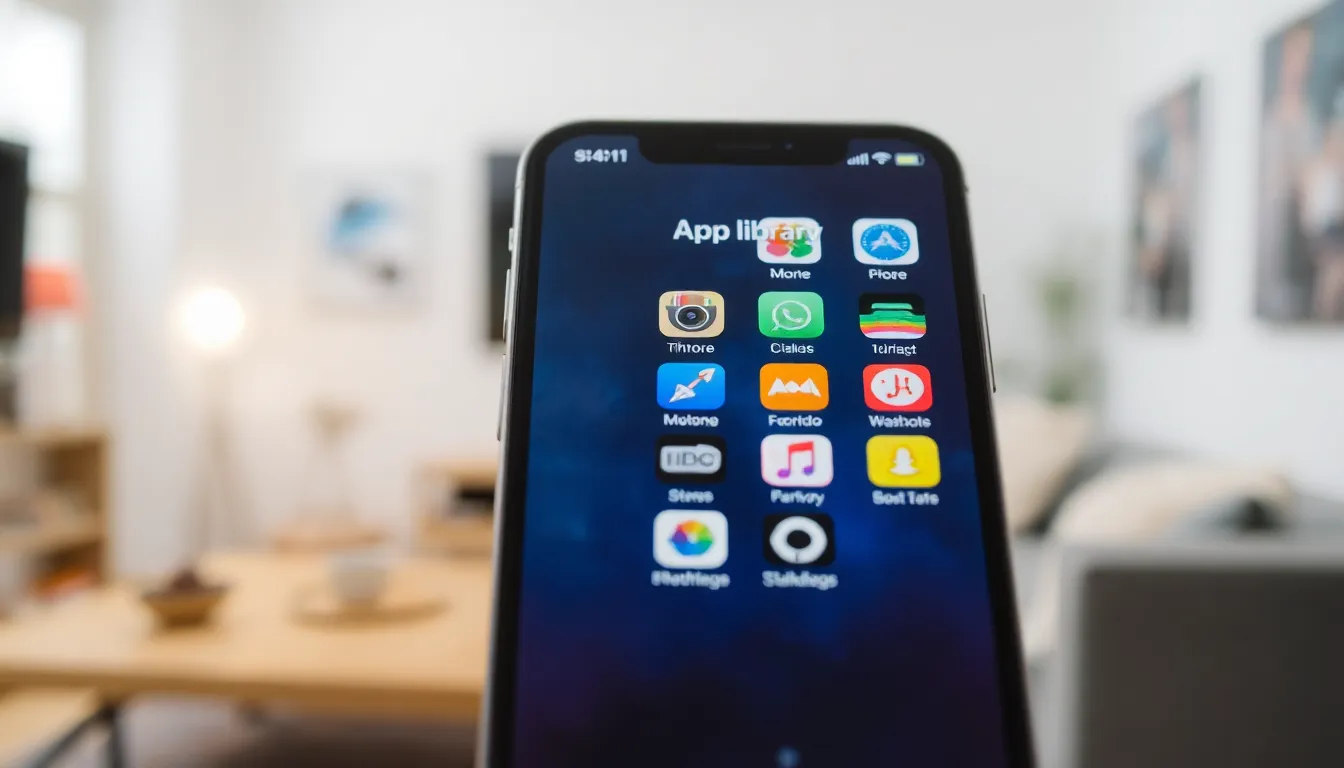
Finding hidden apps on an iPhone can involve several straightforward methods. Users can explore different strategies to ensure all apps are visible.
Check App Library
Access the App Library by swiping left past all home screen pages. This feature organizes apps into categories, making it easier to locate hidden ones. Users can view all installed apps here, sorted automatically by Apple’s algorithm. As a result, frequently used apps will appear in the Suggested area, while others can be found in specific folders. Browsing through these categories often reveals apps that may not appear on the home screen.
Search Functionality
Utilize the search feature by swiping down on the home screen. This option allows users to type the app’s name directly into the search bar. As they type, relevant app suggestions will populate immediately, simplifying the search process. If the app still remains hidden, users might need to check for any restrictions or offloading settings. Reviewing search results can quickly identify misplaced or hidden applications.
Reviewing Home Screen Pages
Examine individual home screen pages for hidden apps. Users may have inadvertently placed apps in folders or onto second or third pages. By tapping on each folder, all contained apps will be visible. Scrolling through each page helps to ensure nothing has been overlooked. If excessive pages exist, users can simplify their organization by deleting or rearranging icons for easier access.
Utilizing Settings to Find Hidden Apps
Finding hidden apps on an iPhone often requires exploring specific settings. Using the Settings app provides clear pathways to uncovering those elusive applications.
Accessing Screen Time Settings
To view hidden apps, users must first navigate to Screen Time settings. Opening Settings, they should select Screen Time. Tapping on “Content & Privacy Restrictions” offers additional options. Checking “Allowed Apps” reveals any restrictions that may hide applications. Users can disable restrictions to ensure all installed apps appear on their device. Enabling this feature allows full app visibility again, helping users reclaim access to previously inaccessible apps.
Checking Restrictions
Users may implement restrictions for various reasons, impacting app visibility. Opening Settings and tapping on “Screen Time” provides insight into these limitations. They can immediately check if any apps are disabled under “Content & Privacy Restrictions.” If restrictions are in place, users can adjust settings accordingly. Turning off specific restrictions restores access to hidden apps. This quick check ensures no apps remain concealed due to previous choices in privacy settings.
Third-Party Solutions
Exploring third-party solutions can significantly simplify the process of uncovering hidden apps on an iPhone. These tools often offer features specifically designed for app management and recovery.
App Management Tools
App management tools provide efficient ways to view all installed applications. Users can download applications like AnyTrans and iMazing, which assist in organizing and accessing iPhone apps. These programs allow users to manage apps, view their statuses, and even recover missing applications. They often come with user-friendly interfaces that support easy navigation and retrieval of hidden apps. Using these tools makes app management more straightforward.
Alternative App Store Options
Alternative app stores serve as additional resources for finding missing apps. They often feature applications that might not be available through the official App Store or provide different organizational features. Users can explore platforms like TutuApp or AppValley, which allow easy browsing of apps, including those that may be hidden from the main interface. These app stores enhance the visibility of less common apps and provide options for app installation beyond the standard offerings.
Finding hidden apps on an iPhone doesn’t have to be a daunting task. By utilizing the App Library and search functionality users can quickly uncover apps that may have been misplaced. Exploring settings like Screen Time can also reveal restrictions that might be concealing applications.
For those looking for additional help third-party tools offer an efficient way to manage and access apps. With these strategies in hand users can regain control over their app organization and enhance their overall iPhone experience. Keeping apps visible and easily accessible ensures a smoother and more enjoyable user journey.